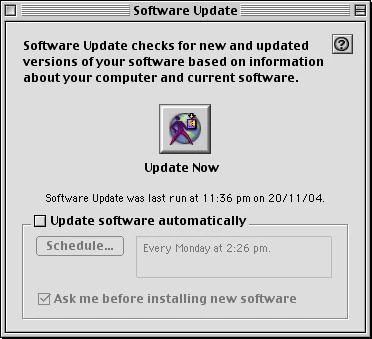
Software Update in Mac OS 9.1
Software Update is a utility first found in Macintosh computers running Mac OS 9 and early versions of Mac OS X. This functionality for macOS has since moved to the Mac App Store. However, Software Update is the primary means of directly updating iOS, iPadOS, and watchOS on iPhones, iPod touches, iPads, and more recently, Apple Watches.
History
Classic Mac OS
Software Update served as a link between the Mac user and the software update item itself. Although software updates had been available since System 1.0, they were often distributed over the Internet over complex web addresses or on floppy disks or upgrade CD-ROMs, and could not be located directly from within the OS. Thus, the need for Software Update, which was introduced in October 1999 with Mac OS 9 as an APPC control panel.[1][2]
Mac OS X
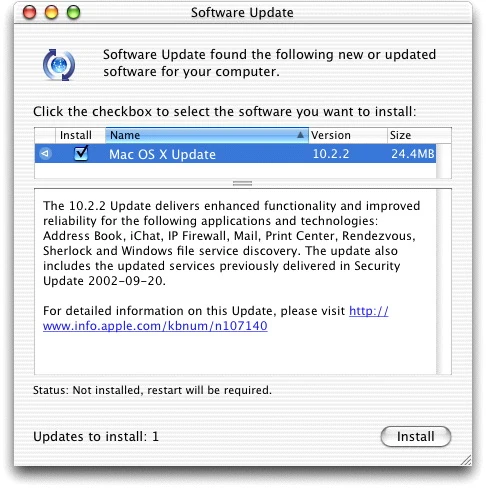
Software Update in Mac OS X "Jaguar"
In Mac OS X, Software Update became a System Preferences pane.[3] The preference pane merely kept track of all software installed. The actual updating took place in the Software Update program, buried deep inside the System folder.
With Mac OS X 10.3, the importance of Software Update was further elevated when it was made the second item in the Apple menu. This, too, merely launched the Software Update program.
In addition to updates to applications and utilities, Software Update is used to distribute security patches to users. With the rise in computer exploits like viruses and worms, this feature can help users keep their Macs protected.
iOS and iPadOS
Software Update for iPads, iPhones, and iPod touches running iOS 5 or later can be found in Settings > General > Software Update
Starting with the release of iOS 14.5 and iPadOS 14.5 on April 26, 2021, users of supported devices may be offered the option to update to a minor software update or a major new release version.[4]


iPads, iPhones, and iPod touches running iOS 4.3.5 or earlier did not support "Over The Air" (OTA) wireless updates and need to be connected to a supported Mac running iTunes to install software updates.[5][6]
watchOS
Software Update for Apple Watches running watchOS 6 or later can be found in Settings > General
Apple Watches running an earlier version of watchOS required a supported iPhone registered to a user under the same Apple ID to download and install any software updates. The user would receive a notification when such updates became available.[7]
References
- ↑ Auto Updating, Apple Computer. Archived 1999-10-13.
- ↑ Control Panels by Ray White, The White Files. 2004.
- ↑ The untold history of macOS System Preferences by Arun Venkatesan. 2020-09-17.
- ↑ Update your iPhone, iPad, or iPod touch, Apple Support. 2021-09-23. Archived 2021-09-24.
- ↑ How to Update Your iPhone, iPad, or iPod Touch Over The Air (OTA), iJunkie. 2012-09-19.
- ↑ A Full Guide on How to Update iPhone with/without iTunes by James Davis, Dr.Fone. 2022-05-23.
- ↑ Update your Apple Watch, Apple Inc. 2020-09-16. Archived 2020-09-29.
External links
- Keep your Mac up to date at Apple Support
- Update macOS on Mac (2021-11-02)
- Update your iPhone or iPad (2022-09-12)
- Update your Apple Watch (2021-09-20)
 System Preferences System Preferences
|
|---|
|
|
| Notes: Items in gray indicate panes of System Preferences that were merged or renamed. Items in |